
Here’s how you can disable and stop receiving iOS 26 and iPadOS 26 developer or public beta updates on your iPhone and iPad.
Done Testing iOS 26 or iPadOS 26 Beta? Stop Receiving Further Updates on iPhone and iPad by Changing One Setting
This tutorial will come in handy when you install the final version of iOS 26 or iPadOS 26 later this year, and don’t want to test out developer or public beta software anymore.
Once you do this, Apple will stop sending you beta updates on your iPhone and iPad, and you can start focusing on the stable software life.
Sounds good? Here’s what you have to do.
Warning: Do not disable the beta update if you’re in the middle of testing the software. If you want to go back to iOS 18 or iPadOS 18, then follow the proper downgrade procedure.
Step 1. Launch the Settings app on your iPhone or iPad.
Step 2. Tap on General.
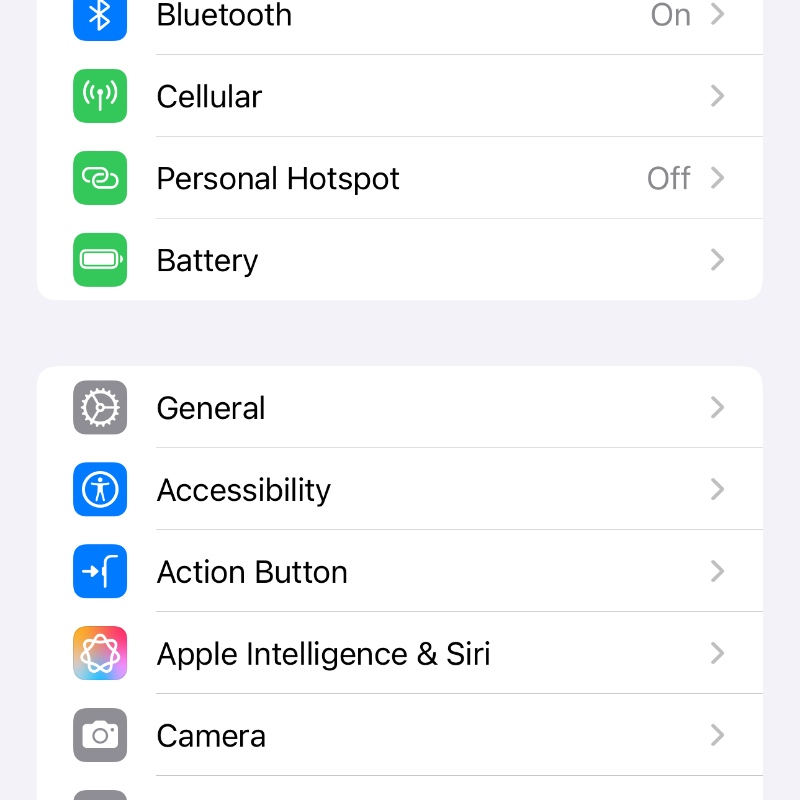
Step 3. Open Software Update.
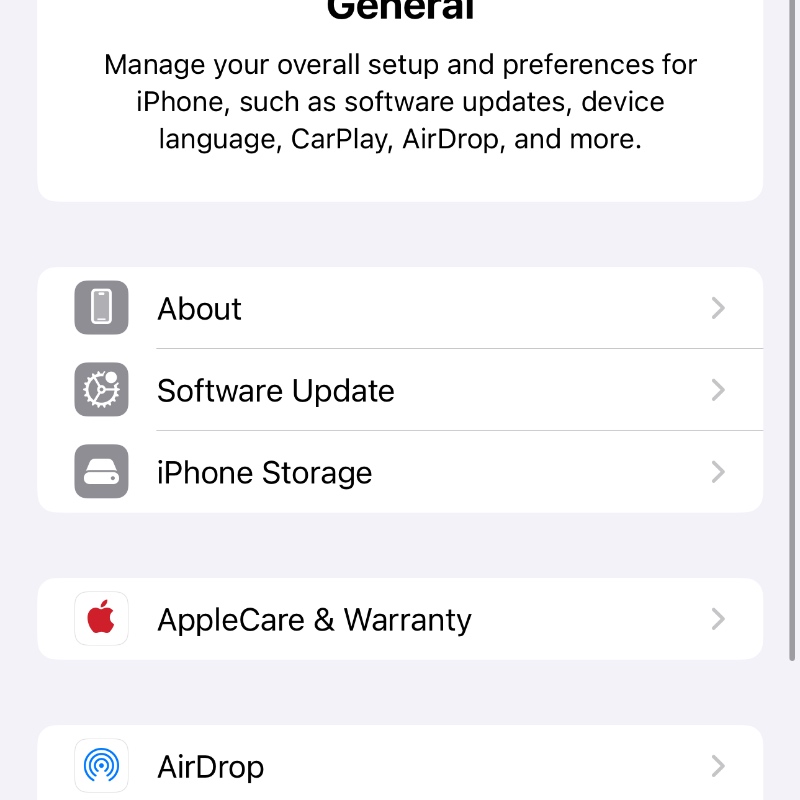
Step 4. Right at the top you will see an entry called Beta Updates. Tap to open it.
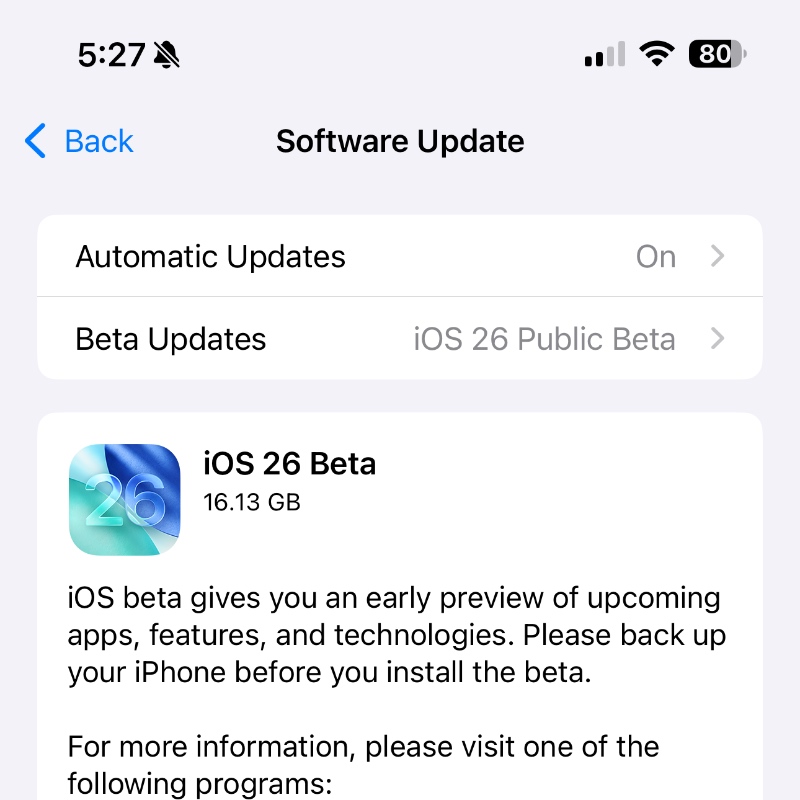
Step 5. Tap on Off as shown in the screenshot below.
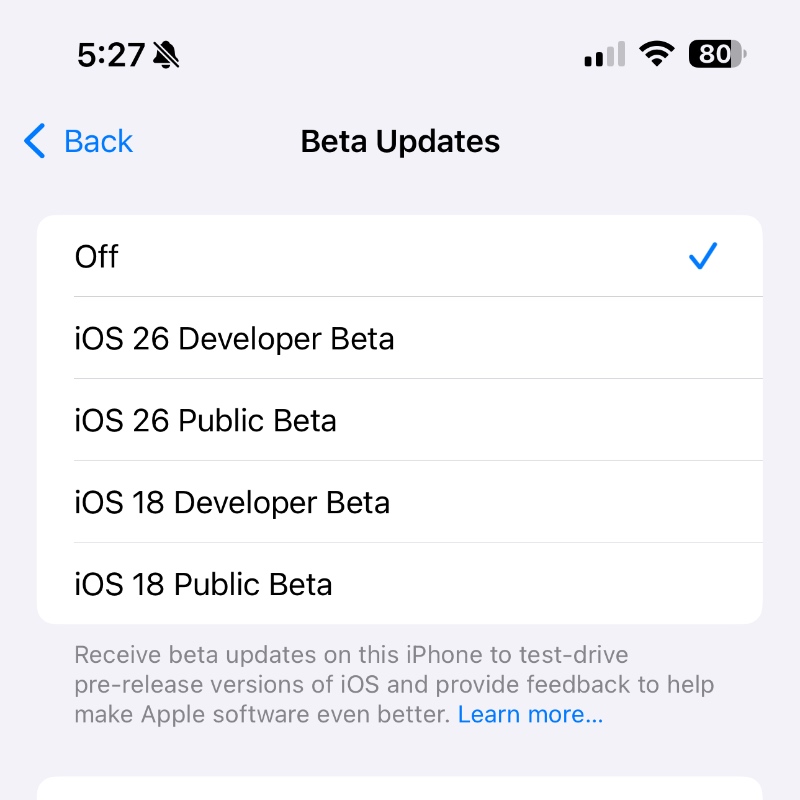
That’s it, once you do this, your iPhone and iPad will only show you and download publicly available software updates. This also means you won’t receive RC (Release Candidate) updates, which are also meant for developers and public beta testers.
It’s vital that you follow these steps once the final version of iOS 26 and iPadOS 26 comes out later this year. Whenever Apple releases iOS 26.1 or iPadOS 26.1, your iPhone and iPad won’t automatically download the update in the background, ensuring you don’t wake up to a beta surprise the next day.
If you’re interested in testing out the developer beta or public beta, make sure you follow the relevant tutorials for it.