
Here’s how you can download and install the new watchOS 26 public beta on your Apple Watch in just a few easy steps.
Take the watchOS 26 Public Beta for a Spin on your Apple Watch – Download and Install for Free Today
Tired of seeing your developer friends rocking the new watchOS 26 update on their Apple Watch before you? Your time has finally come as you too can join the party with the first public beta.
Before you download the new watchOS 26 public beta, there are a few things you should know.
Once You Upgrade there’s No Going Back
It’s a truth everyone should know – once you upgrade your Apple Watch to watchOS 26 beta, you cannot downgrade back to watchOS 11. It’s a one-way road, and you have to download each and every single update until the final version comes out later this year.
If you’re okay with that, then keep on reading.
Check if Apple Watch is Compatible with watchOS 26
Your Apple Watch should be compatible with watchOS 26, otherwise the update won’t even show up for download.
These are the Apple Watch models that are compatible with watchOS 26:
- Apple Watch Series 6
- Apple Watch Series 7
- Apple Watch Series 8
- Apple Watch Series 9
- Apple Watch Series 10
- Apple Watch Ultra
- Apple Watch Ultra 2
- Apple Watch SE 2
That’s a pretty jam-packed list. I’ll be surprised if your Apple Watch isn’t on it.
Your iPhone Should Have iOS 26 Installed
This is an extremely strict requirement set in place by Apple. Your iPhone should be running iOS 26 developer beta or the iOS 26 public beta. Once you’ve installed either one, return here for more instructions.
Sign up for the Public Beta
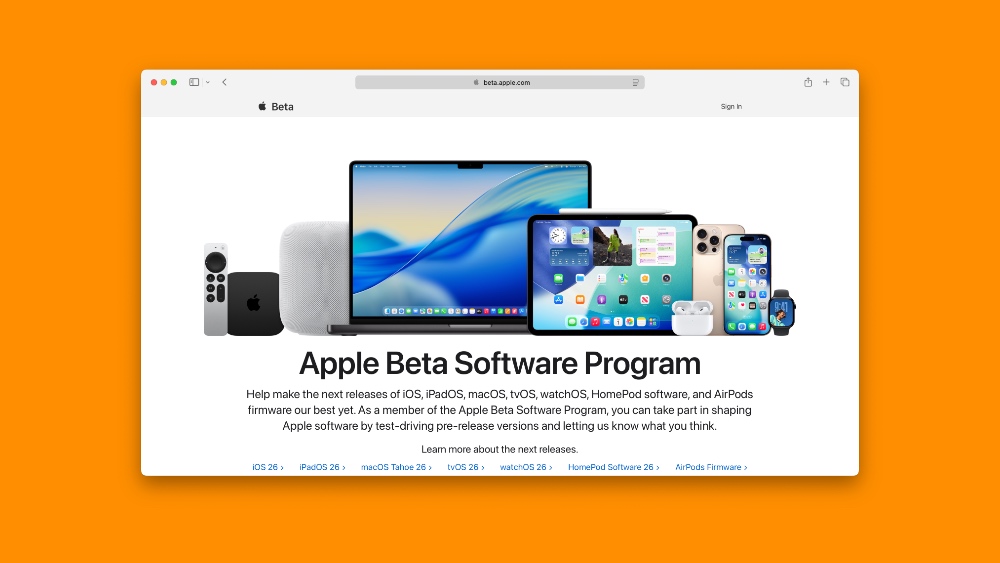
Either using Safari on your iPhone or the Mac, you have to sign up to the beta.apple.com website using the same Apple Account you’re using on your iPhone. Once you do that, your Apple Watch is set to receive public beta updates.
Enable watchOS 26 Public Beta on Apple Watch
Step 1. Launch the Watch app on your iPhone running iOS 26.
Step 2. Go to General > Software Update.
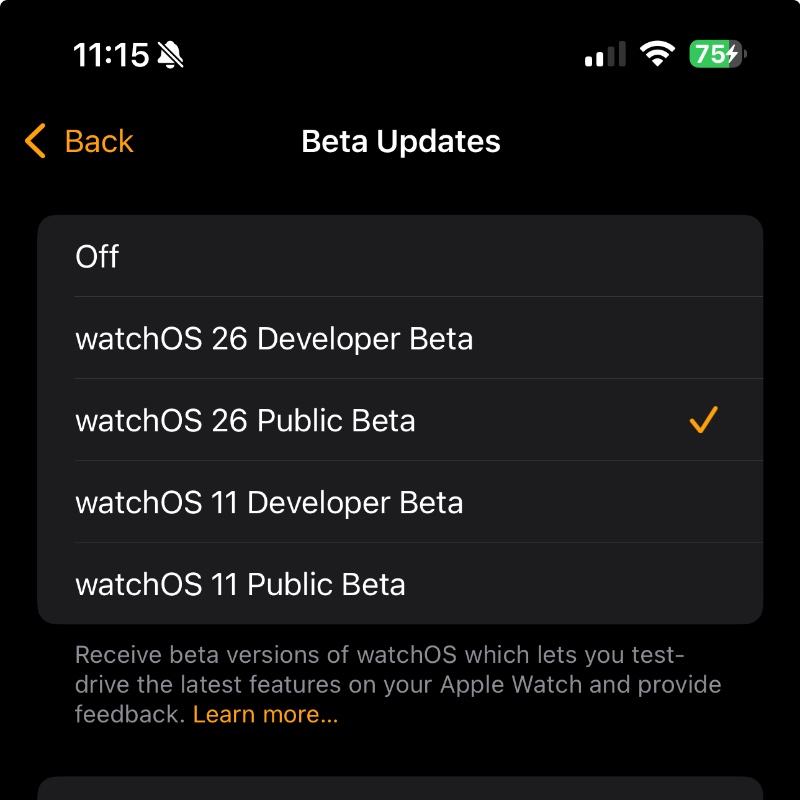
Step 3. Tap on Beta Updates at the top.
Step 4. Select the watchOS 26 Public Beta option here.
Download and Install watchOS 26 Public Beta
Step 1. Launch the Watch app on your iPhone.
Step 2. Go to General > Software Update.
Step 3. watchOS 26 Public Beta will show up, and all you have to do is tap on Update Now.
Step 4. Place your Apple Watch on its magnetic charger throughout the download and installation.
Once the installation is complete, and it will definitely take a while, you can start using your Apple Watch normally, but this time, with Liquid Glass.
Again, once you upgrade, you cannot downgrade back to watchOS 11.