
Here’s how you can delete just one URL from your Safari history on iPhone, iPad, and Mac. This is a super handy tip everyone should know.
No Need to Delete Your Entire Safari History When You Can Delete Just One URL on iPhone, iPad, and Mac
Clearing your Safari history from time to time is sometimes a good idea. But, what if you want to remove just one URL from it? That one URL which has been bothering you for many days.
Turns out, you can actually do that.
In Safari for iPhone, iPad, and Mac, you can delete just one URL and keep everything else in your history intact, ensuring you do not lose your important websites or links you’ve been visiting over time.
Let’s start with the Mac, and then we will work our way up to iPhone and then iPad.
Mac
Step 1. Launch Safari on your Mac.
Step 2. Click on History in the menu bar at the top.
Step 3. Now click on Show All History.

Step 4. You’ll instantly see links from history you visited today, and if you scroll down a little, you will see older dates as well. Open the one that’s appropriate.

Step 5. Find the URL you want to delete from history, right-click on it and then click on Delete.
iPhone
Step 1. Launch Safari on your iPhone.
Step 2. Click on the Bookmarks button.
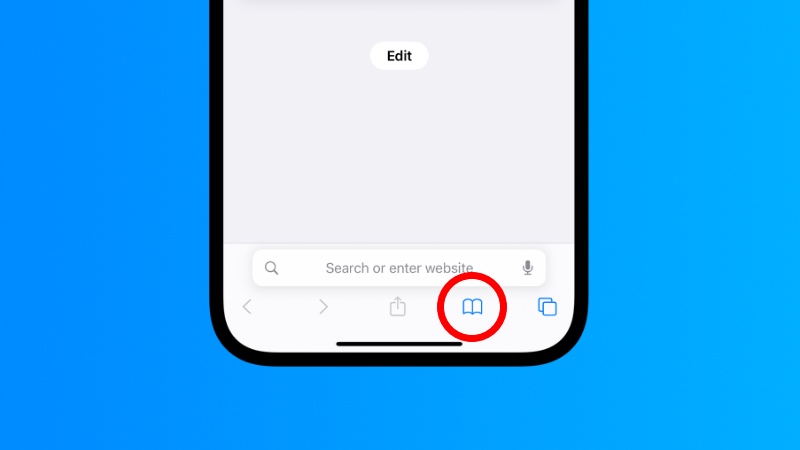
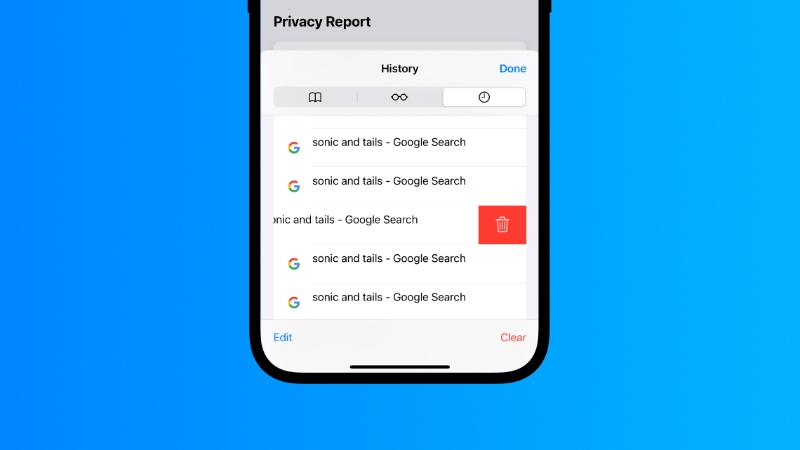
Step 3. Select the History tab, the one with a ‘clock’ icon.
Step 4. Find the URL you want to delete and then swipe left on it and then tap on the ‘trashcan’ icon.
iPad
Step 1. Launch Safari on iPad.
Step 2. Tap on the ‘sidebar’ button as shown in the screenshot below.
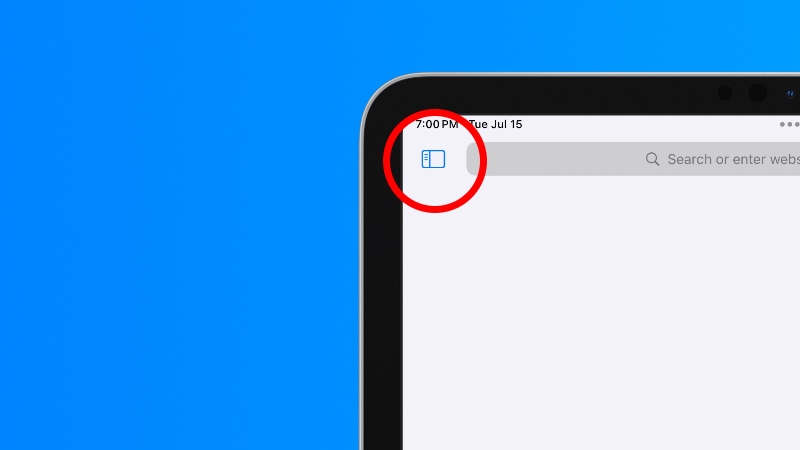
Step 3. Now tap on History.

Step 4. Find the link you want to delete, swipe left on it then tap on the ‘trashcan’ icon.
And that’s how you delete just one URL from Safari history. I hope this helps you out, and don’t forget to share this tip with everyone.