

You can change the default Downloads folder to something else or have Safari ask you each time on your Mac. Here’s what you have to do.
Safari for Mac Lets You Change the Default Downloads Folder Location to Anything Else in Just a Few Clicks
By default, every single file you download using Safari goes to the Downloads folder. Many people don’t know this, but you can actually change this location to something else entirely.
In fact, you can even set Safari to ask you every single time where you want to save the file you’re downloading.
If you’re done with the default Downloads folder, and want to take the next step in choosing, then here’s what you have to do on your Mac.
Step 1. Launch Safari.
Step 2. Click on Safari in the menu bar at the top.
Step 3. Click on Settings.
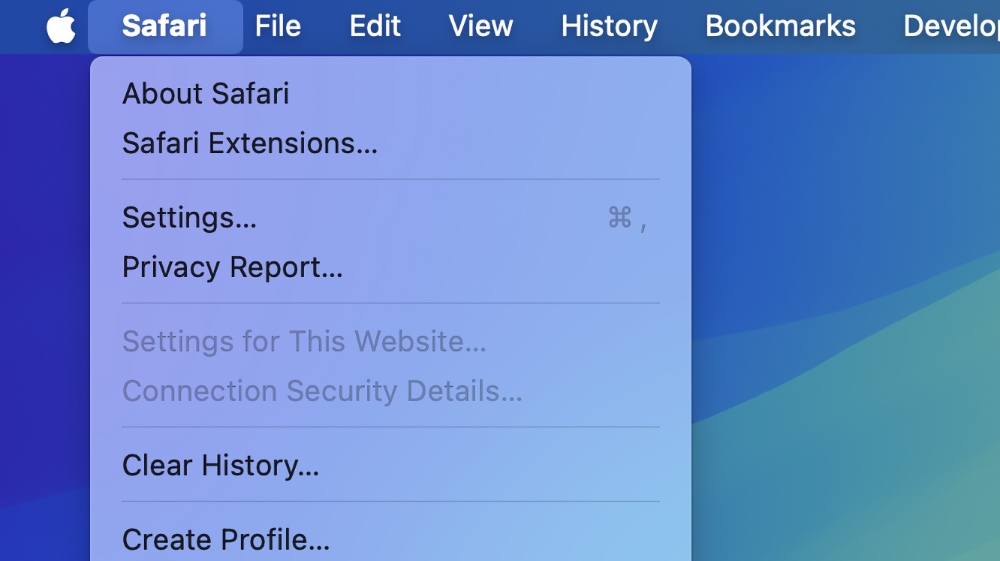
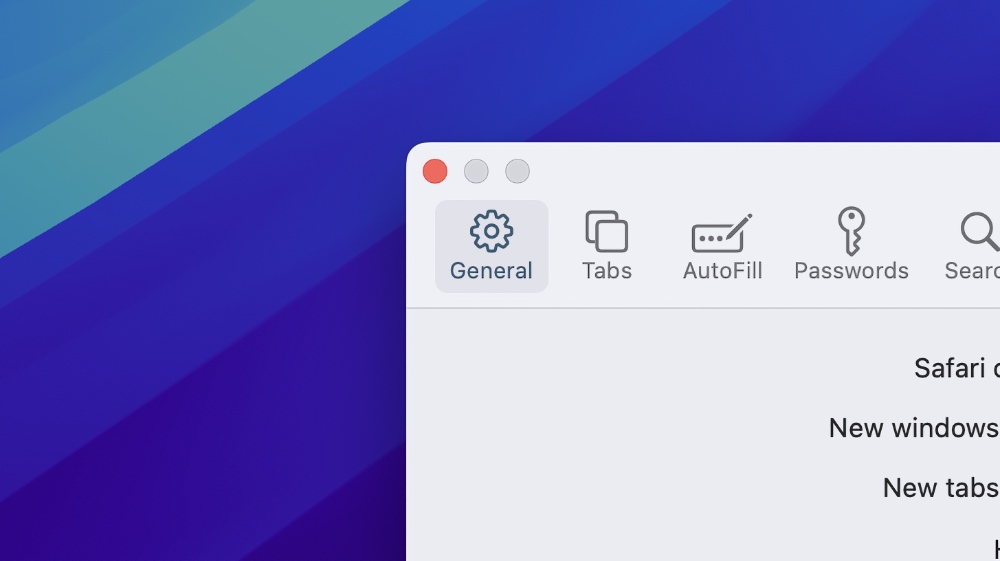
Step 4. Click on General tab on the top left.
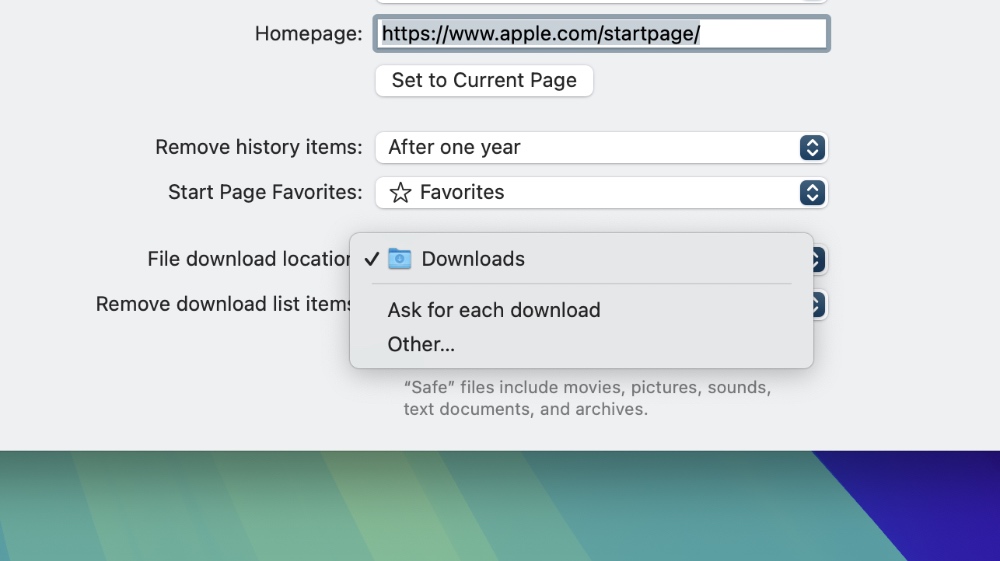
Step 5. Over here you’ll see ‘File download location.’ Click on the drop-down menu next to it.
Step 6. You’re now presented with two options – ‘Ask for each download’ and ‘Other.’
Click on ‘Other’ if you want to choose some other location for saving downloaded files other than the Downloads folder. Or, just click on ‘Ask for each download’ if you want Safari to ask you every single time where you want to save the file.
For a lot of Mac users, this might be a huge change, because we’ve always seen files go straight to the Downloads folder, and it makes perfect sense too. After all, it’s the one and only landing point for each and every single file that comes to your Mac from the internet.
But hey, for the sake of variety, you can always download stuff to some other location, and there’s an official way to make this change too. It’s all written above.