

Apple has released macOS 26 Tahoe public beta for iMac, Mac Studio, Mac mini, MacBook Air, Pro, and you can download and install it today.
macOS 26 Tahoe is Now Available as a Public Beta – Go Ahead, Download and Install it on Your Mac for Free Today
We’re four developer betas in, and the first public beta of macOS 26 Tahoe is finally available for download. If you have a compatible Mac, you can install it right away.
But not so fast. I want to walk you through the process one step at a time, ensuring you do things right.
Check if Your Mac is Compatible with macOS 26 Tahoe
As long as you have an Apple silicon Mac, you can download the public beta without worrying about compatibility at all. Though some Intel Macs are supported this year, but the list is very slim.
This the complete list of Macs that are compatible with macOS 26 Tahoe.
- MacBook Air with Apple silicon, 2020 and later
- MacBook Pro with Apple silicon, 2020 and later
- MacBook Pro, 16-inch, 2019
- MacBook Pro, 13-inch, 2020, four Thunderbolt 3 ports
- iMac, 2020 and later
- Mac mini, 2020 and later
- Mac Studio, 2022 and later
- Mac Pro 2019, and later
Once you’ve established that your Mac is in the list, let’s move to the next step.
Sign up for the Public Beta
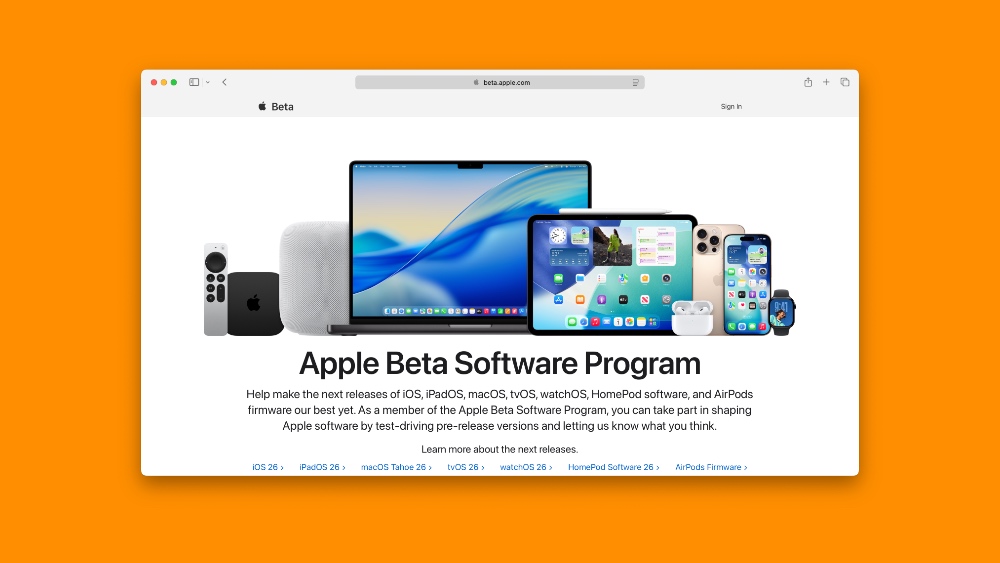
Launch Safari, go to beta.apple.com, and then click on the Sign In button on the top right. Now simply sign in using the same Apple Account which you are currently using on your Mac. Once you do that, your onboarding is complete.
Enable the macOS 26 Tahoe Public Beta
Launch System Settings, click on General on the left, then click on Software Update on the right. Once here, you’ll see Beta Updates at the top; click on the (i) button next to it.
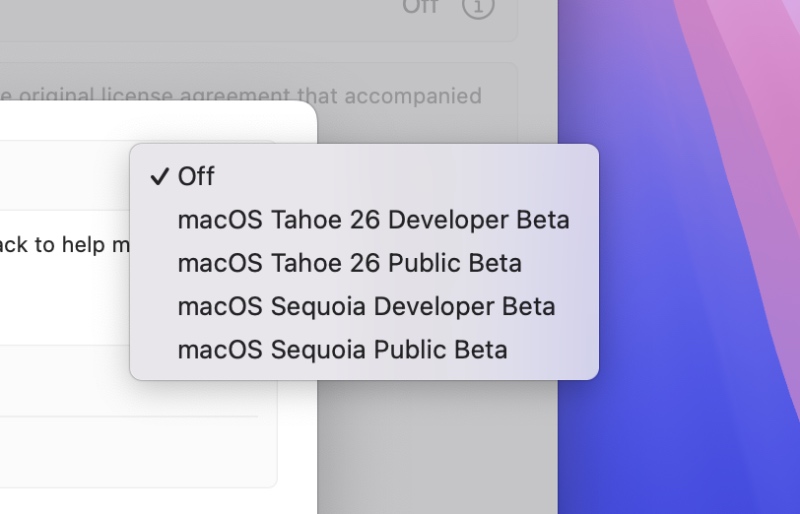
Here you’ll see a drop-down menu next to Beta Updates. Click to open it and then select macOS Tahoe 26 Public Beta. Click on Done to confirm your selection.
Backup Everything Important
If you have important files on your Mac, make sure you back them up to a safe and secure location. You can either use iCloud Drive, Google Drive, OneDrive, or just an external drive, if you have one.
Download and Install macOS 26 Tahoe Public Beta
Step 1. Launch System Settings on your Mac.
Step 2. Click on General on the left.
Step 3. On the right you’ll see a bunch of options, click on Software Update.
Step 4. Give it a while and the macOS 26 Tahoe public beta will show up. Click on Update Now to start downloading the update.
The entire installation process may take a while, and if you have a MacBook, make sure you keep it plugged in throughout the process.