

Here’s a complete step-by-step tutorial on how to enter or exit DFU mode on Apple’s iPad 11 tablet with A16 Bionic chip.
Fix iPadOS Issues for Good on iPad 11 with A16 Using DFU Mode – Learn How to Enter and Exit it Whenever Needed
Restoring an iPad to its factory settings is easy, and you can do it from the Settings app too. However, you can take things further by restoring your iPad using Finder on your Mac.
This ensures that the software you’re installing is super-fresh and does not build on top of previous over the air update files.
Just plug it in to your Mac, launch Finder, click on the Restore iPad button and you’re done. I’ve even covered it here in detail.
However, if your iPad is severely corrupted and just simply refuses to restore to its factory settings, then you might want to give DFU mode a shot.
With DFU mode, you basically force-restore the iPadOS firmware on it. This also means that you will lose everything on your iPad. If possible, take a backup of your files and data using Finder or iCloud.
If it’s not possible to do so, then I’m afraid you’ve lost your data for good.
But, at least you haven’t lost your iPad. And let me show you how you can enter or exit DFU mode on iPad 11 with A16 Bionic chip.
Enter DFU Mode on iPad 11
Please read the steps carefully before attempting this. It may take several tries to get the sequence right. If it fails, you have to start all over again.
Step 1. Power off your iPad 11 completely by pressing the Volume Down button and let go, press the Volume Up button and let go, press and hold the Power button until the screen turns off.
Step 2. Connect your iPad 11 to your Mac using a USB-C cable.
Step 3. Press the Volume Down button and let go, press the Volume Up button and let go.
Step 4. Press and hold the Volume Down + Power buttons for 5 seconds.
Step 5. Let go of the Power button once the 5 seconds are up and keep on holding the Volume Down button for another 5 seconds.
Step 6. Finder should now detect your iPad 11 in DFU mode. This is the message you’ll see once your iPad is in DFU mode:
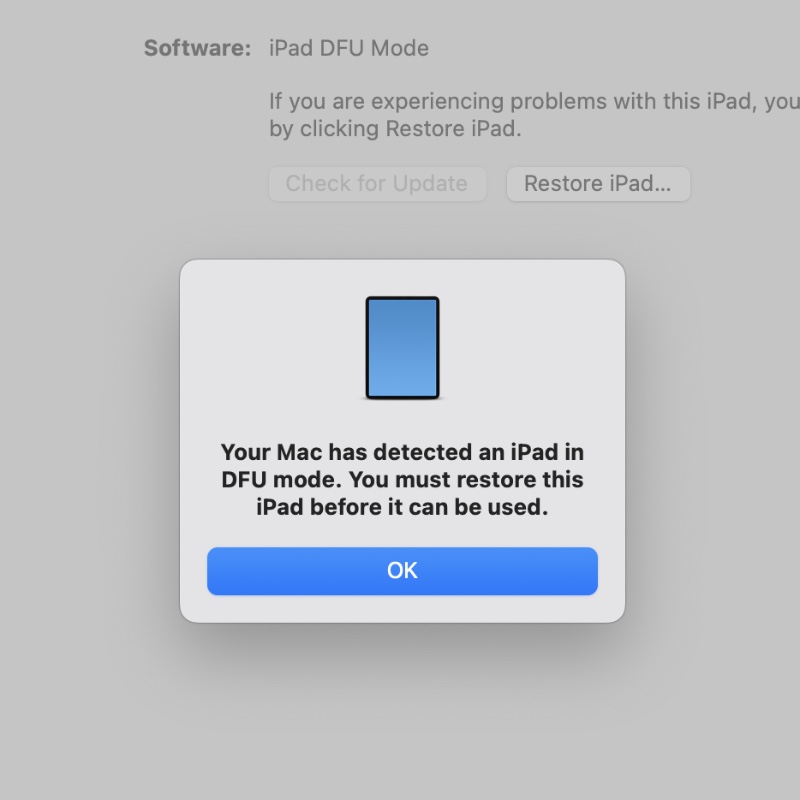
Again, this may take several tries before you get it right. Patience is key.
Once in DFU mode, you can restore your iPad to the latest firmware by clicking on the Restore iPad button in Finder. The iPadOS firmware file will start to download and eventually be installed on your iPad 11.
Exit DFU Mode on iPad 11
Step 1. Unplug the USB-C cable.
Step 2. Press and let go of the Volume Up button, press and let go of the Volume Up button.
Step 3. Press and hold the Power button until you see the Apple logo on the display.
That’s it, you’re no longer in DFU mode.
Interestingly, these steps are the same as the M4 iPad Pro, since both tablets are same in terms of button layout.