

Today I will show you how you can send voice notes using iMessage from the Messages app on Apple Watch.
Latest watchOS Update Makes Sending Voice Notes Easy Using iMessage, Here’s How it Works
Apple Watch makes iMessage really, really fun. Just lift your wrist up, type away, and you’re good to go. No need to pull out your iPhone.
But things go into the gray area when you try to send a voice note.
For the longest time, sending a voice note using Apple Watch wasn’t an easy task. You had to dig into settings and tell Apple Watch that when you speak, you want it to record your voice and not transcribe it to be sent as a text message.
Thankfully, with the latest watchOS update, things are so much easier and make so much sense.
Let me show you how it works:
Step 1. Launch the Messages app on your Apple Watch.
Step 2. Open up any conversation at all.
Step 3. Tap on the “+” button next to the text field.
Step 4. Right at the top you’ll see “Audio.” Tap on it
Step 5. Once the recording is done, tap on the Send button on the top right. It’s that easy.
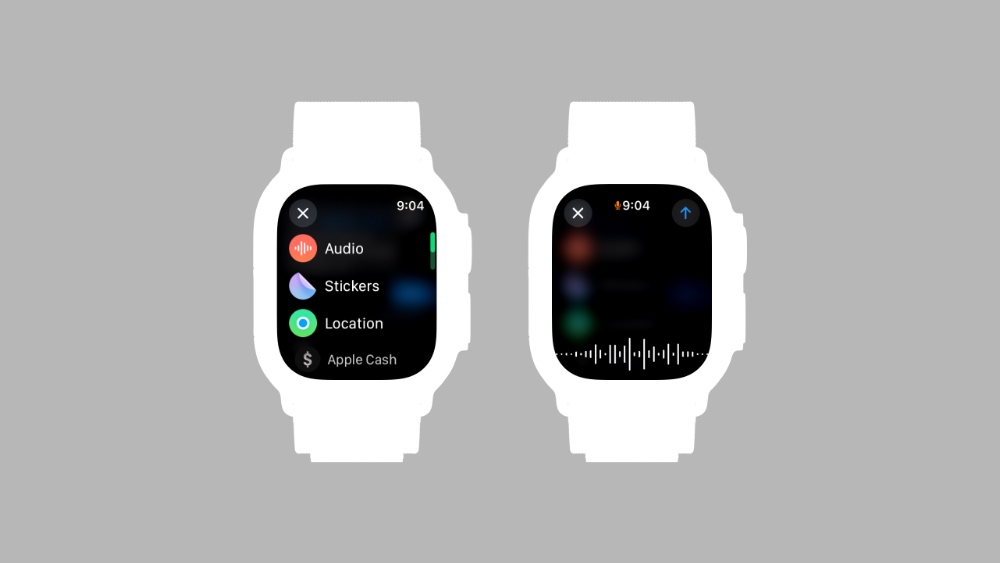
Now that you know how to send a voice message right from your wrist, you have leveled up on your texting game too.
If you’re texting a lot, then voice definitely comes in handy. You just can’t type a long message on your wrist without bringing in dictation or the voice note feature.
While the keyboard seems like it’s there to make things easy, it needs a lot of work. Even with swipe typing, things don’t get easy. You never know how accurate you are on such a tiny display of an Apple Watch.
After all these years, my texting-from-the-wrist habits have changed. I went from typing a complete message to just choosing from the pre-defined responses; else, I just pull out my iPhone to type it all.