

If you have multiple email accounts, here’s how you can refresh the Mail app on your Mac and check for new email.
You Can Manually Refresh the Mail App on Your Mac, and the Button for it is Not Straightforward at All
Refreshing the Mail app on iPhone and iPad is easy. Just pull to refresh your mailbox, and Mail will immediately check for new email.
On the Mac, there’s no pull to refresh at all. If your email account has push support, it will show up immediately, but if it doesn’t, then Mail will check for new email at a regular interval.
Thankfully, there is a button which you can click to refresh your entire inbox. And oddly enough, that button is a poor choice in UX as well, because it looks like a ‘mark as unread’ button.
Step 1. Launch the Mail app on your Mac.
Step 2. Right at the top you’ll see a bunch of buttons. Find the one that looks like this:
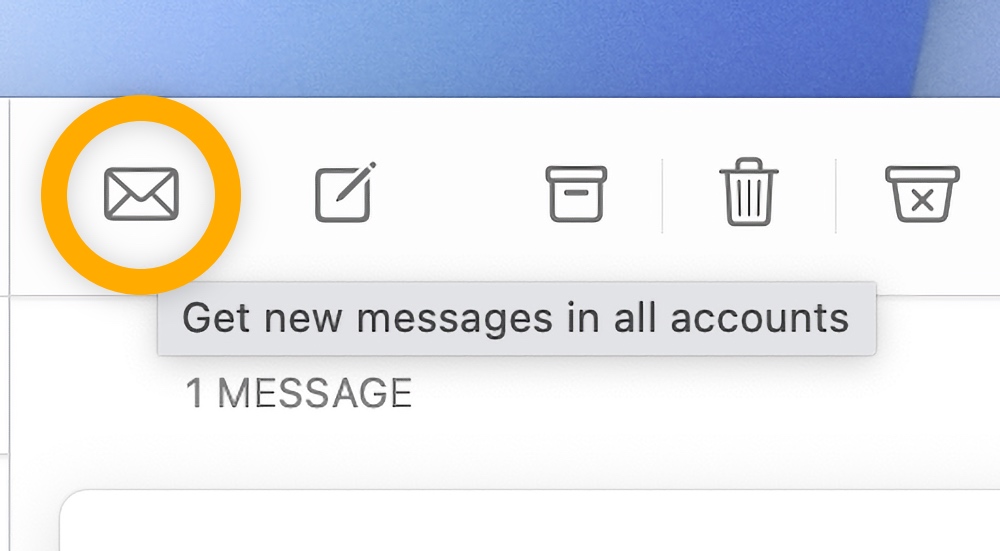
Step 3. Click on the button and Mail will instantly check for new email across all your accounts, not just one.
While this tip will make your life easy, but you know what would have been better instead? If the refresh button looked like this:

For the longest time, I ignored the button completely until I hovered the mouse pointer over it.