
You have the option to copy edits from one photo or video, and paste them onto another in the Photos app for iPhone, iPad, and Mac.
Copy Your Edits from One Photo or Video and Paste it onto Another Effortlessly Using the Photos App on iPhone, iPad, or Mac
Photo or video editing on iPhone, iPad, and Mac is a fun thing to do once you get to realize that you can copy and paste your edits from one place to another.
Whether it’s a photo or video, this small feature works like magic.
There’s a high chance you already know about this feature. But if you don’t, I’m going to walk you through the whole thing one step at a time on iPhone, iPad, and Mac.
Let’s start with iPhone and iPad.
Step 1. Launch the Photos app.
Step 2. Find a photo or video you’ve already edited using the Photos app.
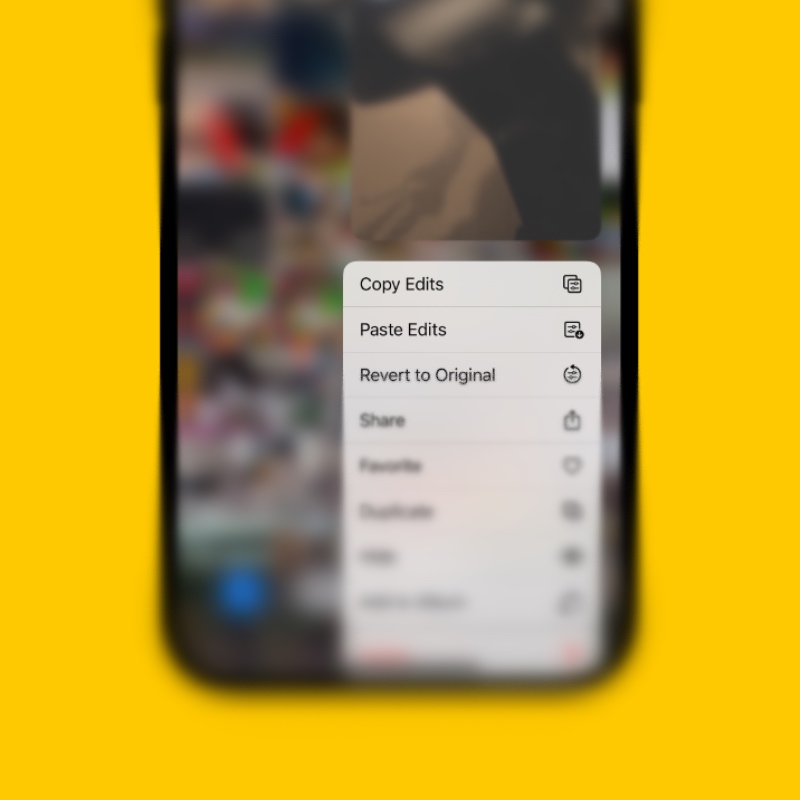
Step 3. Tap and hold on the photo or video, and you’ll see the Copy Edits option front and center. Or, open the photo or video, tap on the ‘three dots’ button on the top right and tap on Copy Edits.
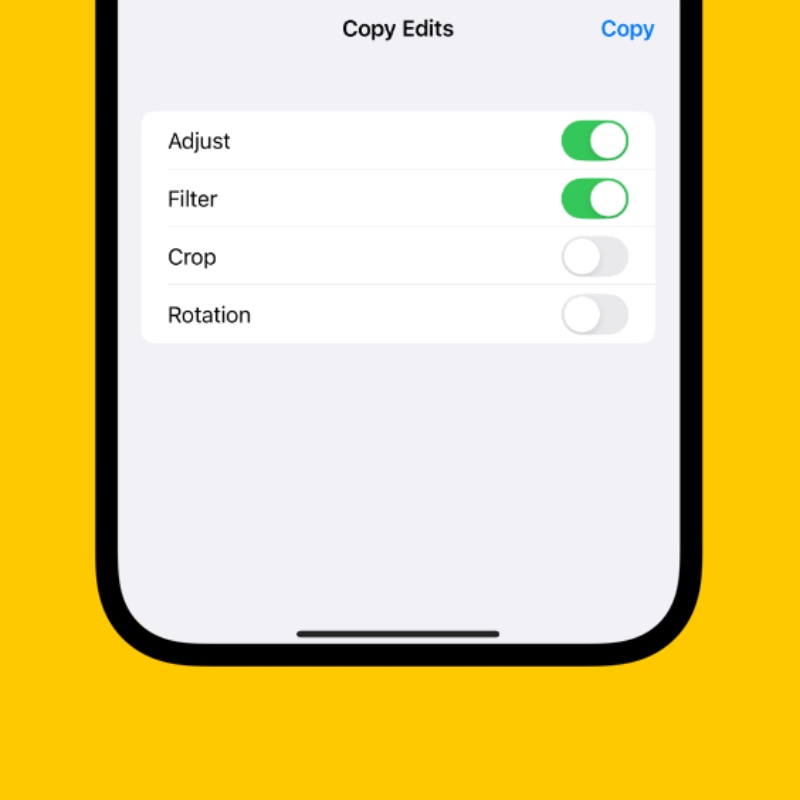
Step 4. Leave the Adjust and Filter boxes checked and leave everything else unchecked. Once done, tap on Copy.
You may not see all the options, depending on the amount of edits you’ve performed on the photo or video.
Step 5. Tap and hold on the photo or video where you want to paste your edits. Now tap on Paste Edits. Or, you can open the photo or video, tap on the ‘three dots’ button, and then tap on Paste Edits.
If you’re using a Mac, the process is simple too.
Step 1. Launch the Photos app.
Step 2. Find the photo or video that is already edited using the Photos app.
Step 3. Right-click on it and then click on Copy Edits.
Step 4. Leave Adjust and Filter checked and everything else unchecked. Click on Copy once you’ve made your choices.
Step 5. Find the other photo or video where you want to paste your edits, right-click on it and then click on Paste Edits.
I use this feature in the Photos app excessively. Once I’ve achieved a specific look, it’s just easy to copy the edits and paste them somewhere else. This way, you can achieve the same look without recalling anything at all.
You can even bulk paste the edits in the Photos app on iPhone and iPad. Just select multiple photos or videos, and then tap the ‘three dots’ button on the bottom right and tap on Paste Edits.
You can do the same thing on your Mac by selecting multiple photos or videos, then right-clicking on them, then clicking on Paste Edits.
If you want to experiment with this feature, use this tutorial to achieve the orange and teal look, then copy the edits somewhere else.